Many writers know how to read their manuscript with their eyes, but far fewer know how to listen to it. That is where Microsoft Word’s Read Aloud feature becomes a very useful editing companion. Microsoft says Read Aloud uses the text-to-speech ability of your device to play back written text as spoken words, and it is especially helpful for proofreading, multitasking, and improving comprehension. (Microsoft Support)
For African writers, this tool can be a quiet blessing. Our manuscripts often carry rich oral rhythm, storytelling warmth, strong dialogue, and cultural expressions. Yet the very things that make our writing alive can also hide repetition, awkward phrasing, long sentences, and places where the writing sounds good in our heads but not on the page. Listening helps reveal what silent reading can miss.
Why writers should listen to their manuscripts
When you listen to your work, you begin to hear problems that your eyes may skip over. You may notice that a sentence is too long, a paragraph is overloaded, a character’s speech sounds unnatural, or a devotional reflection is saying the same thing three times in slightly different ways. Listening also helps you catch missing words, incorrect punctuation flow, clumsy transitions, and places where emotion is explained too heavily instead of shown naturally.
This matters greatly for nonfiction, memoir, devotionals, children’s stories, and Christian teaching materials. A manuscript may be doctrinally sound and full of wisdom, yet still feel heavy because the language is crowded. Read Aloud helps you hear where the writing breathes and where it struggles.
What MS Word Read Aloud does
Microsoft explains that Read Aloud reads all or part of your document, while Speak reads only selected text. In Word, Read Aloud can be started from the Review tab.
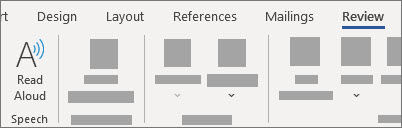
Once it begins, you can play, pause, move to the previous or next paragraph, and stop. You can also adjust reading speed and choose a voice from the settings gear. (Microsoft Support)
Microsoft also notes that Read Aloud is available in Office 2019, Office 2021, and Microsoft 365. (Microsoft Support)
How to use Read Aloud in MS Word
Here is the simple process:
Open your manuscript in Microsoft Word. Then go to the Review tab and select Read Aloud. Press Play to begin listening. If you need a break, select Pause. To move through the document, use Previous or Next to jump between paragraphs. When you are finished, select Stop. (Microsoft Support)
You can also change the experience by opening the gear icon in the Read Aloud controls. There you can adjust the reading speed and choose the voice that suits you best. (Microsoft Support)
Another helpful option is to highlight only a portion of text and then start Read Aloud, so that Word focuses on the section you want to examine more closely. Microsoft specifically notes that selected text can be read aloud this way. (Microsoft Support)
Keyboard shortcuts that help
For Windows, Microsoft lists these shortcuts:
Ctrl + Alt + Space to start Read Aloud
Ctrl + Space to play or pause
Ctrl + Right Arrow to move to the next paragraph
Alt + Left Arrow to slow the reading speed
Alt + Right Arrow to increase the reading speed (Microsoft Support)
For Mac, the shortcuts include:
Ctrl + Option + Space to start Read Aloud
Option + Space to play or pause
Option + Up Arrow to go to the previous paragraph
Option + Down Arrow to go to the next paragraph (Microsoft Support)
These are worth learning because editing becomes easier when your hands can respond quickly while your ears stay focused.
1-1a: Prepare Yourself to Get Published…
Are you ready to publish your book? Here is how you need to prepare. Have your manuscript ready and explore the oprions available today. If you are stuck in getting…
Read More
1-1b: Let’s Talk About Publishing
The self-publishing landscape has changed considerably in the past two decades with new technologies such as the Internet, and the $1 billion markets continuing to change at a rapid pace….
Read More
1-1d: Factors to Consider Before Self Publishing
Jesus, while talking to the disciples about following Him, asked them to count the cost. The same Scripture applies to authors today – you have to count the cost from…
Read More
1-1e: Requirements for Self Publishing
Are you ready to be published? Use our 4 points check list and tick ‘Published Author’ box so you can move on to the next God-given assignment… #RaisingAfricanVoices
Read More
1-1f: Publishing Steps – Review
Is your manuscript due for a review towards getting published? The major focus during manuscript review is the general quality of the book. It is important to establish the overall…
Read More1-1c: How Can We Become Effective Christian Authors?
Learn how to become an effective Christian author by writing under the guidance of the Holy Spirit, remaining rooted in Scripture, pursuing excellence, serving the right readers and trusting God…
Read More2-2b: How to Write a Book Dedication
A book dedication is a way for you, the author to bestow a high honor on a person (or a group of people) you wish to praise or otherwise spotlight….
Read More
2-3e: How to Write a Book’s Foreword
A well-written foreword can function as the ultimate third-party recommendation or endorsement for your book, generating interest and helping when it’s time to market your book. Here’s how to write…
Read More2-2e: How to Write a Book Introduction
Are you stuck on writing your book introduction? Here’s how to… Hook the reader right from the beginning with a personal story from your life, a funny story, a joke,…
Read More2-3a: How to Write a Book’s Conclusion
If your readers are in the conclusion chapter, it also means they read the whole book, they liked it, and now they want you to wrap it up. So don’t…
Read More2-2a: How to Write an Author’s Bio
People are looking for reasons why they should spend their time reading what you have written. You need to instill confidence in your readers that you are knowledgeable on the…
Read More2-3b: How to Write a Book’s Blurb
A blurb is a short yet descriptive account of the book that goes on the back cover or within the book sleeve of a hardcover book. It includes any information…
Read More2-2c: How to Write an Acknowledgement
An acknowledgment section in a book provides the space to go into lenghty details in thanking the people who were sources of inspiration and support for your book and life….
Read More2-3c: How to Write Table of Contents
A table of content shows the things that are held or included in something. In the book industry, it is a list of the chapters or sections given at the…
Read More2-3d: How to Differentiate Between a Foreword and Endorsement
Foreword vs endorsement: what’s the difference? Discover their purpose, placement, length, and how each builds credibility and helps readers choose your book.
Read More2-1a: How to Profile Your Target Reader
Learn how to profile your target reader so you can write with greater focus, choose the right tone and examples, address real needs, and market your book more effectively. This…
Read More2-2d: How to Start the First Sentence or Paragraph of Your Book
Learn how to start the first sentence or paragraph of your book without overthinking. Discover seven practical opening approaches, from personal stories and questions to bold statements, scenes and Scripture…
Read More2-1c: How to Do Proper Research Before or As You Write
Learn how to conduct proper research before or as you write. This practical Christian writing guide covers foundational and advanced research, credible sources, Scripture study, plagiarism, interviews, permissions, fact-checking and…
Read More2-1b. How to Create an Outline for Your Book
Learn how to create a clear and practical book outline that organises your ideas, strengthens your chapter flow and guides the writing process while remaining open to the leading of…
Read More3-3a: Why is Organising Your Non-Fiction Into Chapters Important?
Organising your non-fiction book into clear, well-structured chapters enhances readability, engagement, and comprehension for your audience. Chapters create a logical flow, making complex ideas easier to digest while guiding readers…
Read More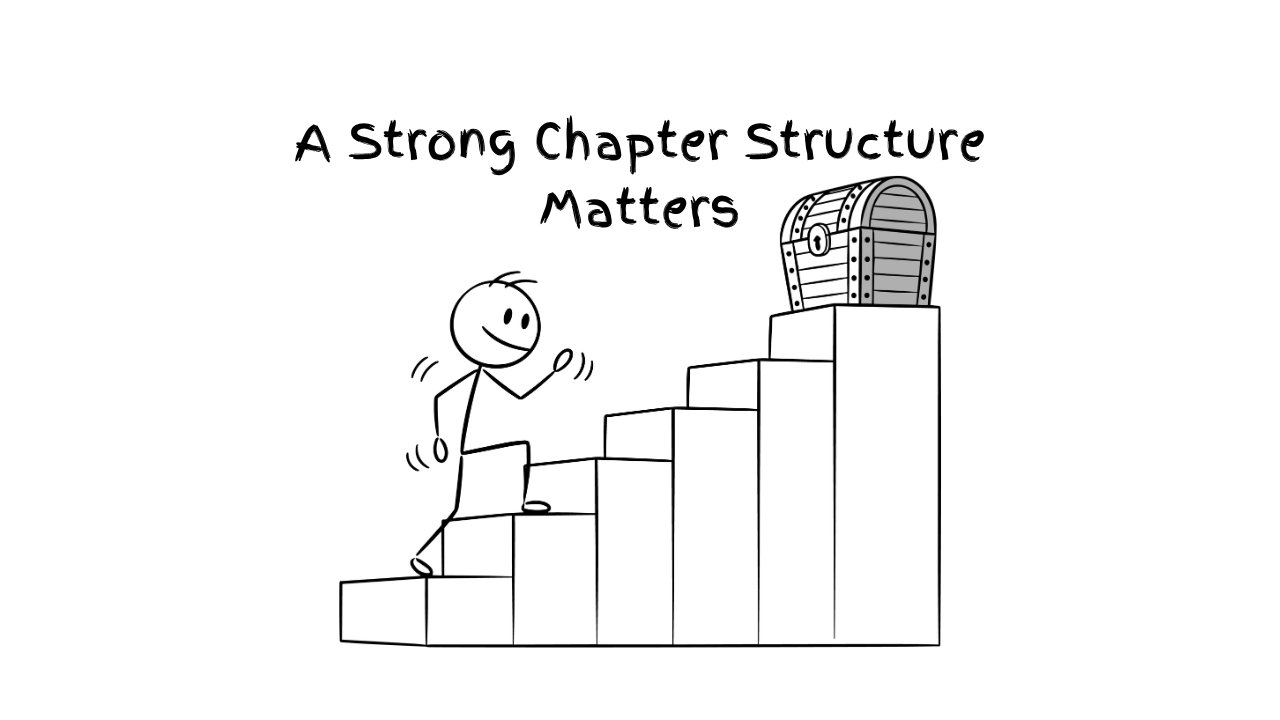
3-3b: Why a Strong Chapter Structure Matters
A well-structured chapter helps your reader follow your message with ease. This simple guide shows writers how to build a chapter that flows from introduction to teaching, story, application, reflection,…
Read More
3-7a: Why Self-Edit Your Book Before Submitting it for Publishing?
Self-editing is a crucial step before submitting your manuscript for publishing. It allows you to refine your ideas, correct errors, and enhance the overall quality of your work. A well-edited…
Read More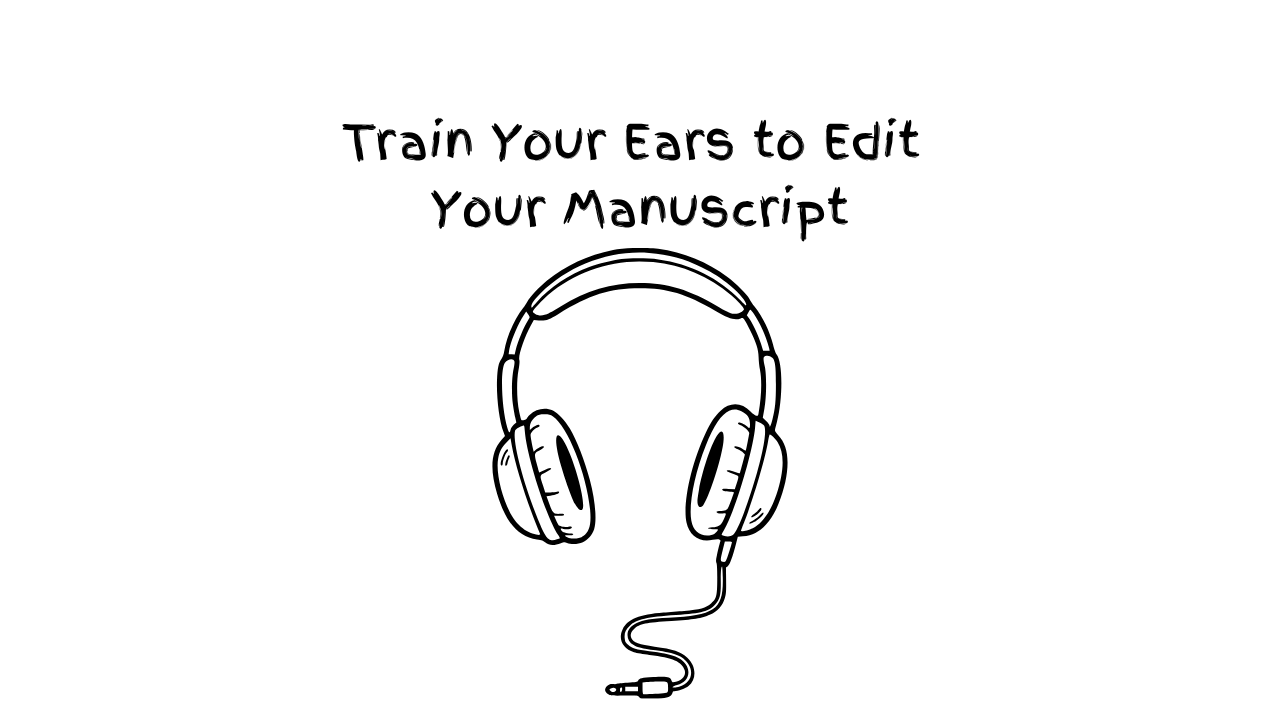
3-7b: Train Your Ears to Edit: How African Writers Can Listen to Their Manuscripts Using MS Word Read Aloud
Learn how to use MS Word’s Read Aloud feature to listen to your manuscript, catch awkward sentences, improve flow, sharpen dialogue, and edit your writing more effectively as an African…
Read More3-1a: How to Write a Devotional
A devotional book is a literary work designed to provide spiritual inspiration, guidance, and reflection for readers seeking to deepen their faith and relationship with God. Get started here. #RaisingAfricanVoices
Read More3-1b: How to Write a Captivating Novel
A great novel is a complex interplay of various elements, but some key components often contribute to its greatness. Get started here. #RaisingAfricanVoices
Read More3-2c: How to Use Dialogue in Story Writing
Effective dialogue is characterized by authenticity, clarity, and relevance to the story. It should sound natural and believable, reflecting the unique voices and perspectives of the characters. Dialogue tags, such…
Read More3-2d: How to Use ‘Show Don’t Tell’ in Story Writing
“Show don’t tell” is a fundamental principle in storytelling that encourages writers to use descriptive language, actions, dialogue and scenes to reveal information to the reader, rather than simply telling…
Read More3-1c: How to Elevate a Non-fiction Christian Book to Make it Personal and Engaging
Transforming a flat non-fiction Christian book into an engaging and impactful read requires authenticity and connection. Share your personal testimony, use relatable real-life examples, and offer practical applications to make…
Read More3-6b: How to Ethically Use Other People’s Public Stories in a Non-fiction Christian Book
Using public stories in your Christian book requires integrity and respect for the individuals involved. Always seek permission where possible, give proper attribution, and ensure the story aligns with your…
Read More3-2e: How to overcome the challenge of mixed languages in writing a manuscript
Writing a manuscript with mixed languages can be both enriching and challenging. To overcome this, establish clear guidelines for when and how to incorporate multiple languages. Use translations sparingly and…
Read More3-6d: How to Ensure Diversity and Inclusion in Christian Writing
By embracing diverse voices, ensuring equitable access for underrepresented authors, and encouraging inclusive storytelling, authors and publishers can reflect the richness of God’s Kingdom. This includes actionable strategies to amplify…
Read More3-6a: How to Use External Source Excerpts with Footnotes and Endnotes
Many writers think footnotes and endnotes belong only in academic writing, yet they can strengthen memoir, Christian non-fiction, and reflective books too. Here is a simple guide for African writers,…
Read More3-6c: How Authors Should Mention Other People in Painful Stories
Learn how authors can write about real people in painful situations with wisdom, honesty, and grace. This post explores how to change names, stay objective, avoid slander, acknowledge personal responsibility,…
Read More3-1d: Why Consistency in Every Session Matters: Writing Workbooks Well
Learn practical workbook writing tips for African authors, with a focus on consistency in every session. Discover how clear structure, repeated formats, and reader expectations can make your workbook more…
Read More3-4d: How to Differentiate Repetition from Emphasis: Helping African Writers Strengthen Their Message Without Tiring the Reader
African writers must learn the difference between repetition and emphasis if they want to keep readers engaged. This training article explains how to emphasize key concepts with clarity, rhythm, imagery,…
Read More3-4c: How to Use Transition Paragraphs in Your Writing
Learn how to use transition paragraphs effectively in your writing. This concise guide for authors explains how to introduce a story smoothly, move from story to application, and end one…
Read More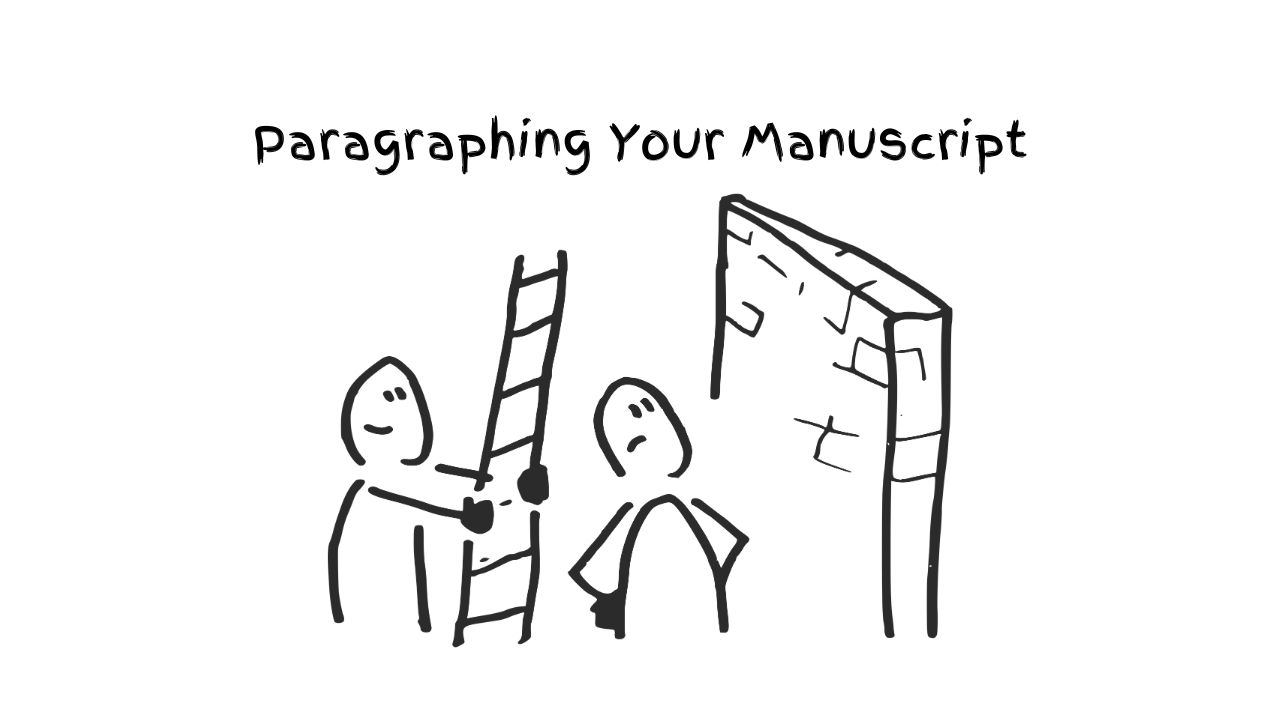
3-4b: How to Paragraph Your Manuscript Well
Learn how to paragraph your manuscript in a simple, clear way. This short guide teaches authors to keep one paragraph to one idea, avoid crowding thoughts, and use clean paragraph…
Read More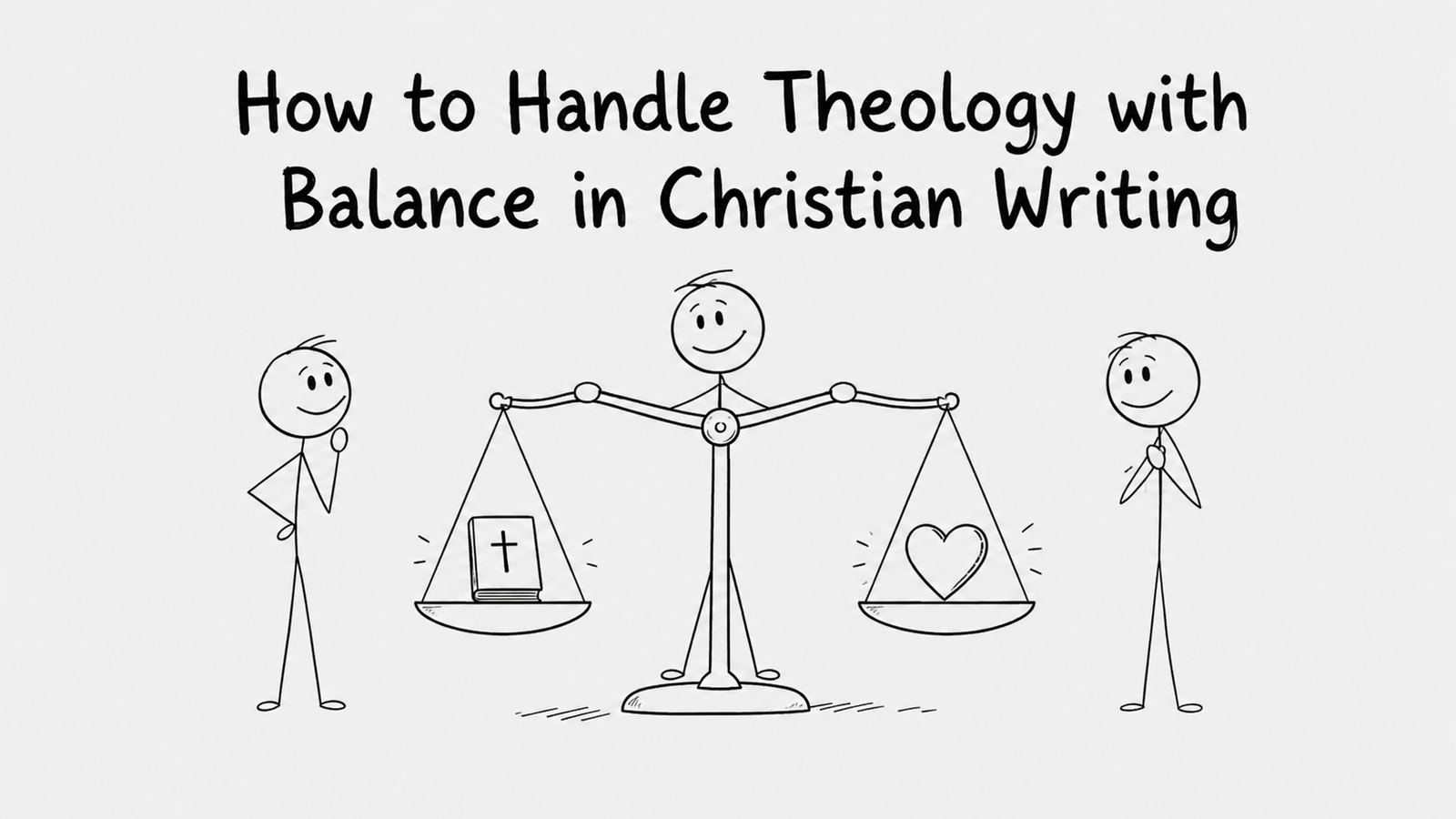
3-5b: How to Handle Theology with Balance in Christian Writing
Christian authors must handle theology with both biblical truth and pastoral care. This article explains how to balance personal testimony, Scripture, exegesis, and reader application so Christian writing remains sound,…
Read More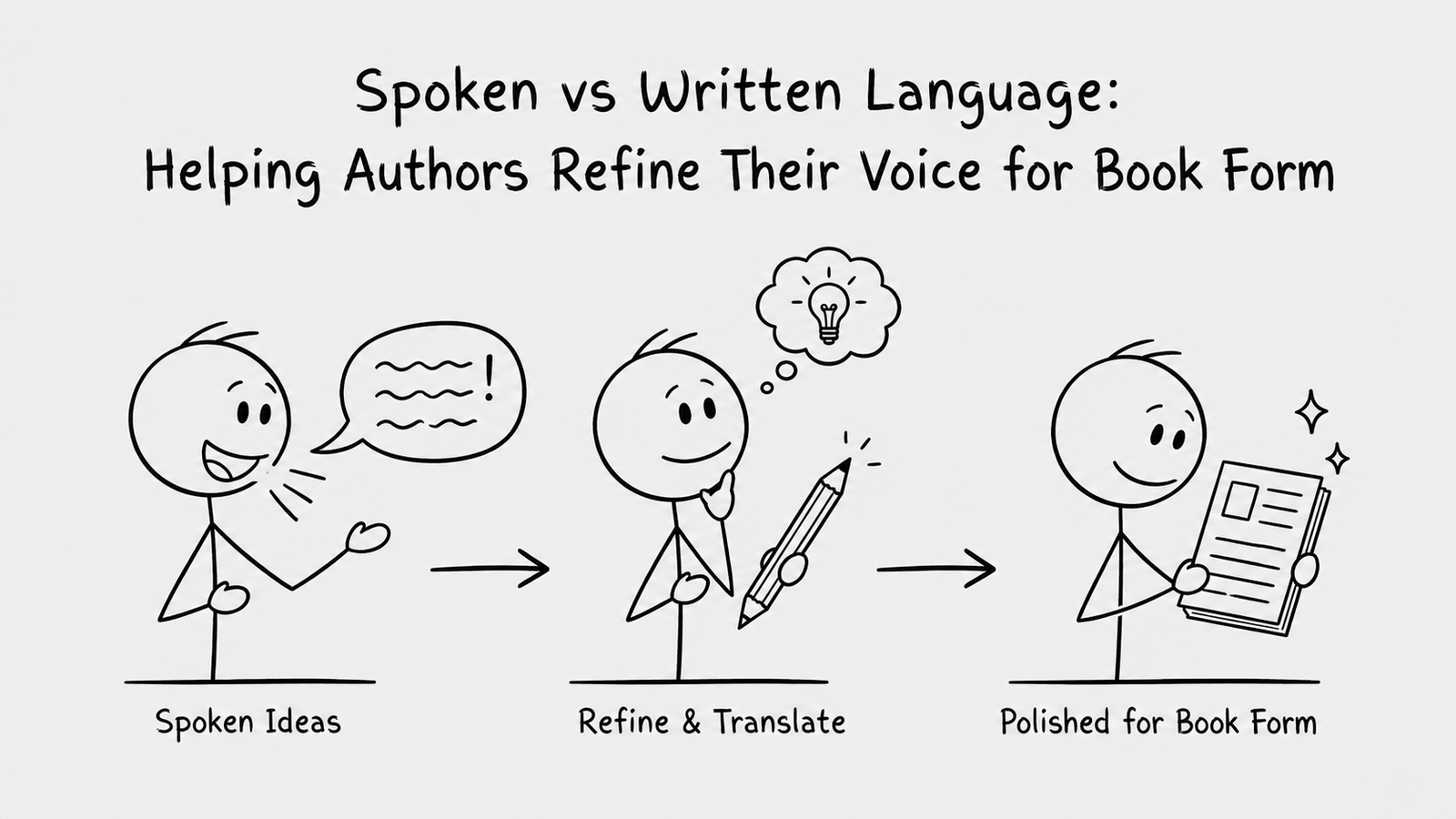
3-4a: Spoken vs Written Language: Helping Authors Refine Their Voice for Book Form
Many Christian manuscripts begin as sermons, testimonies, teachings, or spoken reflections. This article helps authors refine informal spoken language into clear, timeless book prose while preserving warmth, humour, personality, and…
Read More3-3c: Why Creative Non-Fiction and Non-Academic Books Should Not Be Too Long
Learn why creative non-fiction books should not be unnecessarily long. This practical guide helps authors improve focus, reduce repetition, lower production costs and write books that readers can afford, finish…
Read More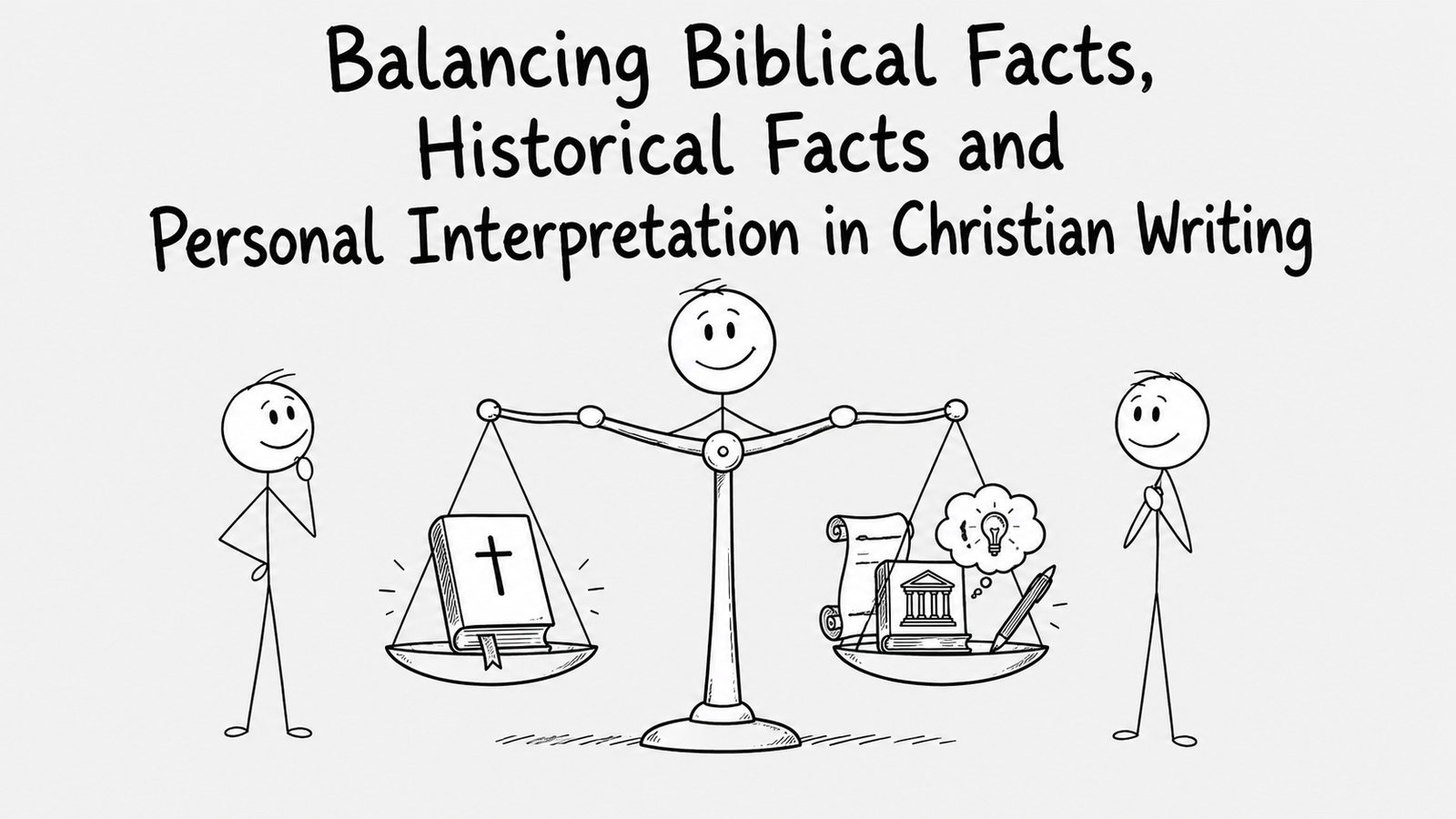
3-5c: Balancing Biblical Facts, Historical Facts and Personal Interpretation in Christian Writing
Learn how Christian writers can balance biblical facts, historical context and personal interpretation without confusing imagination with Scripture. This practical guide explains how to distinguish what the Bible records, what…
Read More3-3d: Why Creating a Comfortable Reading Rhythm for Your Book is Important
Learn why creating a comfortable reading rhythm is important for your book and how balanced chapter lengths can improve flow, structure, clarity and the overall reading experience.
Read More3-5a. How to Place Scriptures in a Creative Book
Learn how to place Scriptures clearly and consistently in a creative Christian book, including Bible versions, inline quotations, highlighted verses, references, italics, and manuscript formatting.
Read More3-2a. How to Choose and Use Point of View in Creative Writing: First, Second and Third Person
Learn how to choose and use first, second and third person point of view in creative writing, maintain narrative consistency, manage narrative distance, avoid head-hopping, and select the perspective that…
Read More3-2b. How to Develop Primary and Secondary Characters in a Story
Learn how to develop compelling primary and secondary characters by defining clear goals, motivations, conflicts, strengths, weaknesses, relationships, distinct voices and believable character arcs that move your story forward.
Read More4-3a: Why Should a Non-Fiction Book Have a Subtitle?
A subtitle is a powerful tool for non-fiction books, offering clarity and appeal to potential readers. It provides additional context about the book’s content, target audience, and benefits, helping it…
Read More4-2a: How to Peer Review Fiction and Non-Fiction Christian Literature Manuscripts
Peer reviewing Christian literature requires a thoughtful approach to ensure the manuscript aligns with Biblical principles while engaging readers effectively. For fiction, focus on character development, plot consistency, and spiritual…
Read More4-4c: Why is The Art of the Author Photo Important? Essential Specs for a Professional and Polished Image
Professional photos on a book’s back page play a crucial role in an author’s branding and marketing strategy. Learn More Here. #RaisingAfricanVoices
Read More4-4b. Why Professional Layout Is Non-Negotiable for African Christian Authors: Publishing With Excellence
Why professional book layout is non-negotiable for African Christian authors. Learn how industry-standard layout protects your message, credibility, reader experience, and publishing excellence from manuscript to marketplace.
Read More4-4a: Book Covers: Why They Matter for Every Author
Your book cover is not decoration—it is your book’s first decision-maker. Discover why covers matter for trust, genre clarity, and sales, plus common mistakes authors can avoid and a practical…
Read More4-1c: How to Turn a True Story into Autobiographical Fiction: Practical Steps for Writing Painful Personal History Well
Learn practical ways to turn a painful true story into autobiographical fiction without losing its truth or lessons. This training article helps African writers change names, settings, timelines, and identifying…
Read More4-2b: Why Theological Editing Must Come Before Comprehensive Editing
Christian manuscripts need theological editing before comprehensive editing. This training explains how theological review identifies speculative interpretations, unsupported symbolism, inaccurate Scripture quotations, weak historical claims and unbalanced treatment of difficult…
Read More4-1a. How to Use Cyclic Structure: Connecting Different Parts of Your Story
Learn how to use cyclic structure in creative writing to connect different parts of a story through flashbacks, memories, recurring themes, parallel experiences and clear transitions between past and present.
Read More4-1b. How to End a Book When preparing for a Sequel
Learn how to end a book when preparing for a sequel. This practical author resource covers plot closure, emotional resolution, sequel hooks, open story threads, foreshadowing, cliffhangers, final chapters and…
Read More5-2a: Why Every Author Needs a Non-Disclosure Agreement (NDA)
Protect your intellectual property with a Non-Disclosure Agreement (NDA) in publishing! An NDA safeguards your manuscripts and creative ideas by establishing confidentiality between authors, publishers, and editors. It ensures your…
Read More5-1a: What to Include in the Copyright Page and Complete the Copyrighting Process
Copyright law gives creators of original material the exclusive right to further use and duplicate that material for a given amount of time, at which point the copyrighted item becomes…
Read More5-3a: Terms and Conditions for Traditional Publishing/Adapting Existing Books into Other Versions
Adapting existing books into new versions, such as translations, audiobooks, or special editions, requires clear terms and conditions in traditional publishing agreements. These terms outline rights, royalties, and responsibilities for…
Read More5-4a: How to Publish a Book with Multiple Stakeholders: Best Practices for Rights Ownership, Expenses and Recognition
Publishing a book with multiple stakeholders requires clear communication and well-defined agreements to ensure smooth collaboration. Establish ownership rights, allocate expenses transparently, and outline recognition for each contributor’s role. Best…
Read More5-1b: How to Get ISBN in Kenya and Other African Countries
Learn how to get an ISBN in Kenya and other African countries, who issues ISBNs, what you need to apply, and why every published book needs one. A practical guide…
Read More5-2b. How to Write a Contributor Consent Form for a Memoir Book
Publishing a book with multiple stakeholders requires clear communication and well-defined agreements to ensure smooth collaboration. Establish ownership rights, allocate expenses transparently, and outline recognition for each contributor’s role. Best…
Read More5-2c: How to Ethically and Legally Use Free or Unpaid Images in Your Book
Learn how to use free images for your book ethically and legally by checking licences, reading the fine print on sites like Unsplash and Freepik, and knowing when paid or…
Read More